Built for dictation on macOS

Lower your audio while you talk.

Volume Duck sits in your menu bar and automatically ducks your Mac's volume while you hold your dictation hotkey. Let go, and your audio fades smoothly back in.

Tiny download. No sign-up. No app store ceremony.

Format DMG download Single-file installer
Footprint 571 KB Stays out of the way
Best with Built-in audio Current software ducking target
Volume Duck Hold a key. The room ducks.
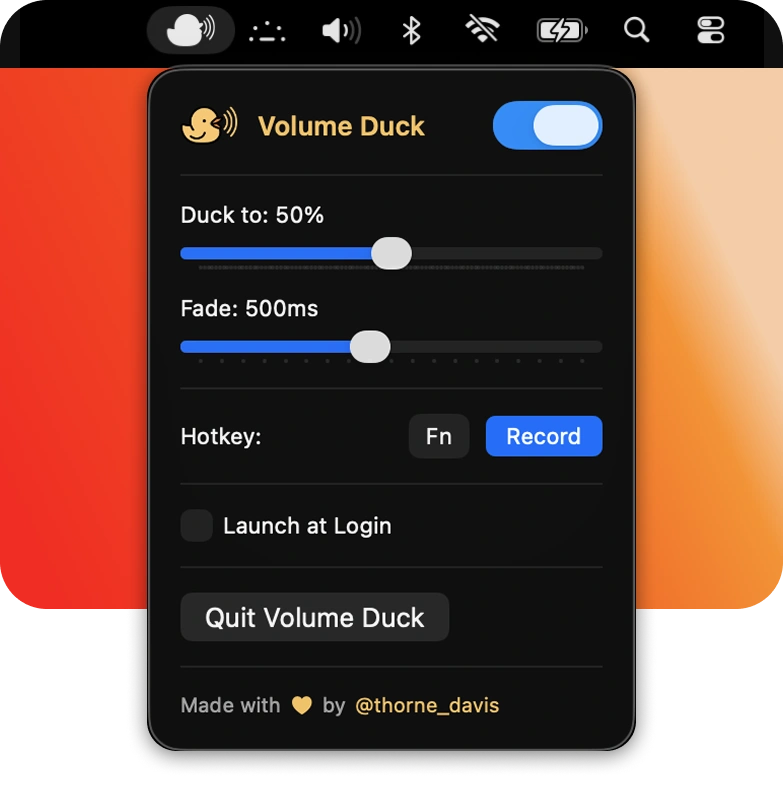
Volume Duck app window with controls for duck level, fade, hotkey, and launch at login
01

No more reaching for volume

Keep music, podcasts, or reference audio playing without manually turning everything down every time you speak.

02

Tuned for the menu bar

Set it once, leave it running, and bring it up only when you want to tweak the hotkey or fade timing.

03

Made for one job

Duck level, fade timing, launch at login, and a recordable hotkey. Nothing bloated around it.

How it works

Hold the key you already use to dictate, and let the app do the rest.

  1. 1

    Choose your hotkey

    Use a single key or a compact combo and record it directly from the app.

  2. 2

    Set your duck amount

    Bring your output down gently or almost all the way, depending on how strong you want the dip to feel.

  3. 3

    Adjust the fade

    Pick how quickly audio drops and returns so the transition feels smooth instead of abrupt.

What you can tune

Everything on the page maps directly to a control in the app.

Duck Level

Set the exact target volume

Go subtle for background listening or drag it lower when you want dictation to cut through clearly.

Fade Timing

Make transitions feel natural

Fast enough to be useful, smooth enough not to sound like the audio is being chopped off.

Hotkey

Fits your dictation habit

Use whatever key or small combo already makes sense in your workflow instead of relearning a system.

Launch at Login

Ready every time you sit down

Leave it on and the app is there the moment you start your Mac, without taking up dock space.

Before you install

A fast setup, plus two things worth knowing up front.

  1. Download and open the DMG. Drag Volume Duck into your Applications folder.
  2. Grant the keyboard permission macOS asks for. Depending on your macOS version, that will be Input Monitoring or Accessibility.
  3. Record your hotkey and set your fade. After that, the app is basically out of your way.

Ready when you are

Install it in a minute and stop riding your volume keys.